Account Settings

Five screens sit behind your profile picture. Most of it you set once and forget. Three of the settings decide who can see you and what of yours they can find — and they are easy to mistake for each other.

The five sections

Open the menu under your profile picture and choose Account settings. A menu on the left, one section at a time on the right.

  • Account & privacy — your password, the three visibility settings, system language, and deleting your account
  • Contact — email, phone, address
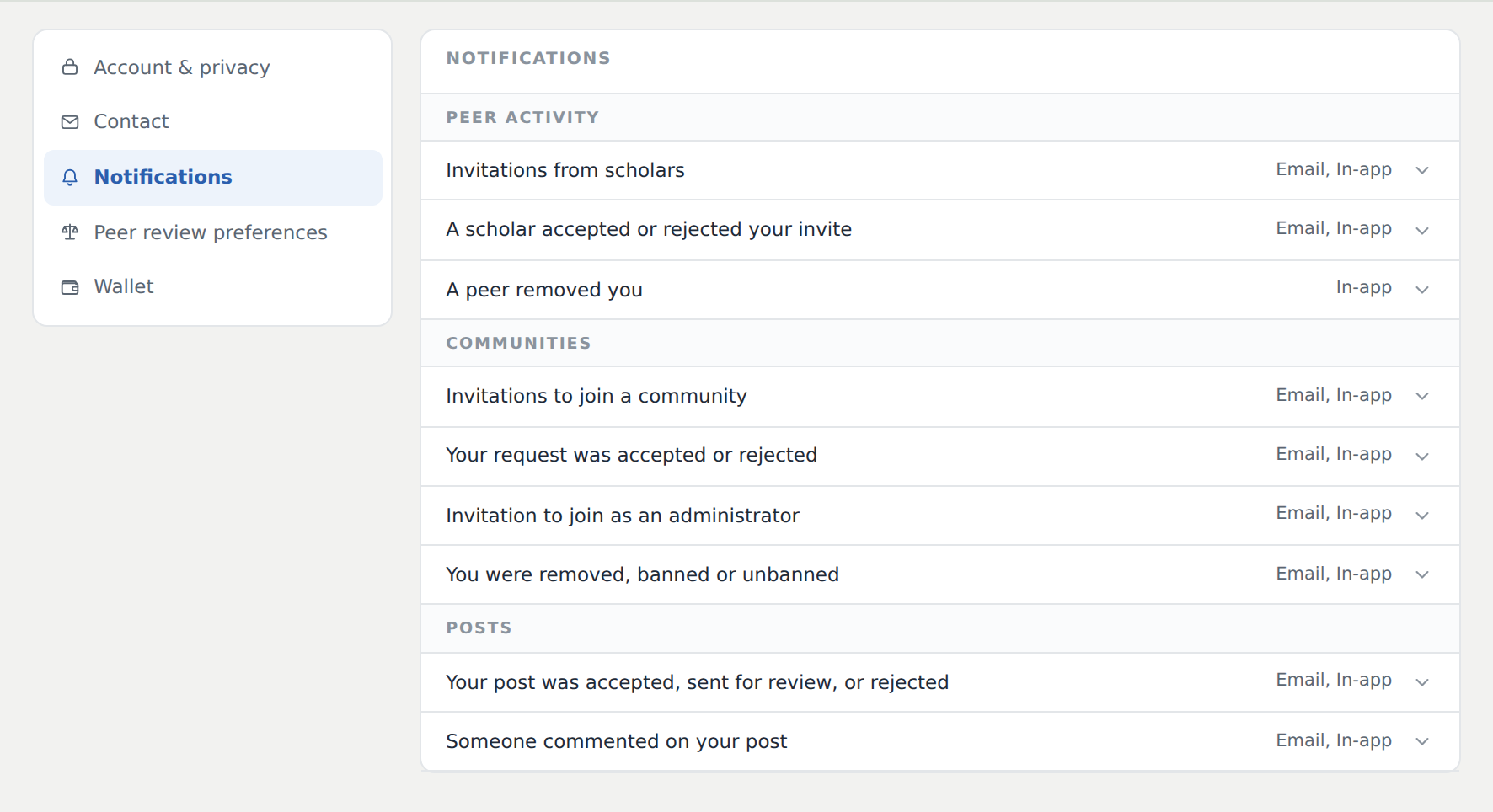
  • Notifications — what reaches you, and by which channel
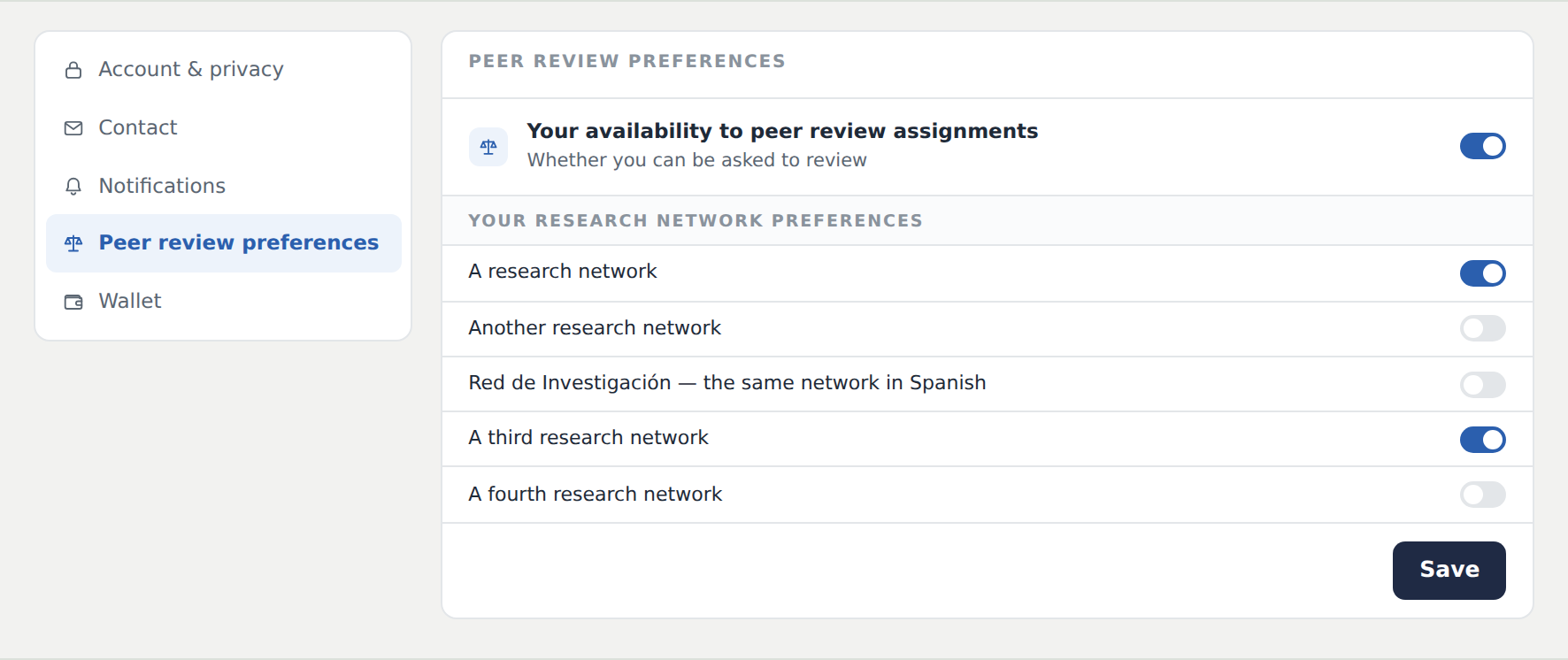
  • Peer review preferences — the networks you are willing to review for
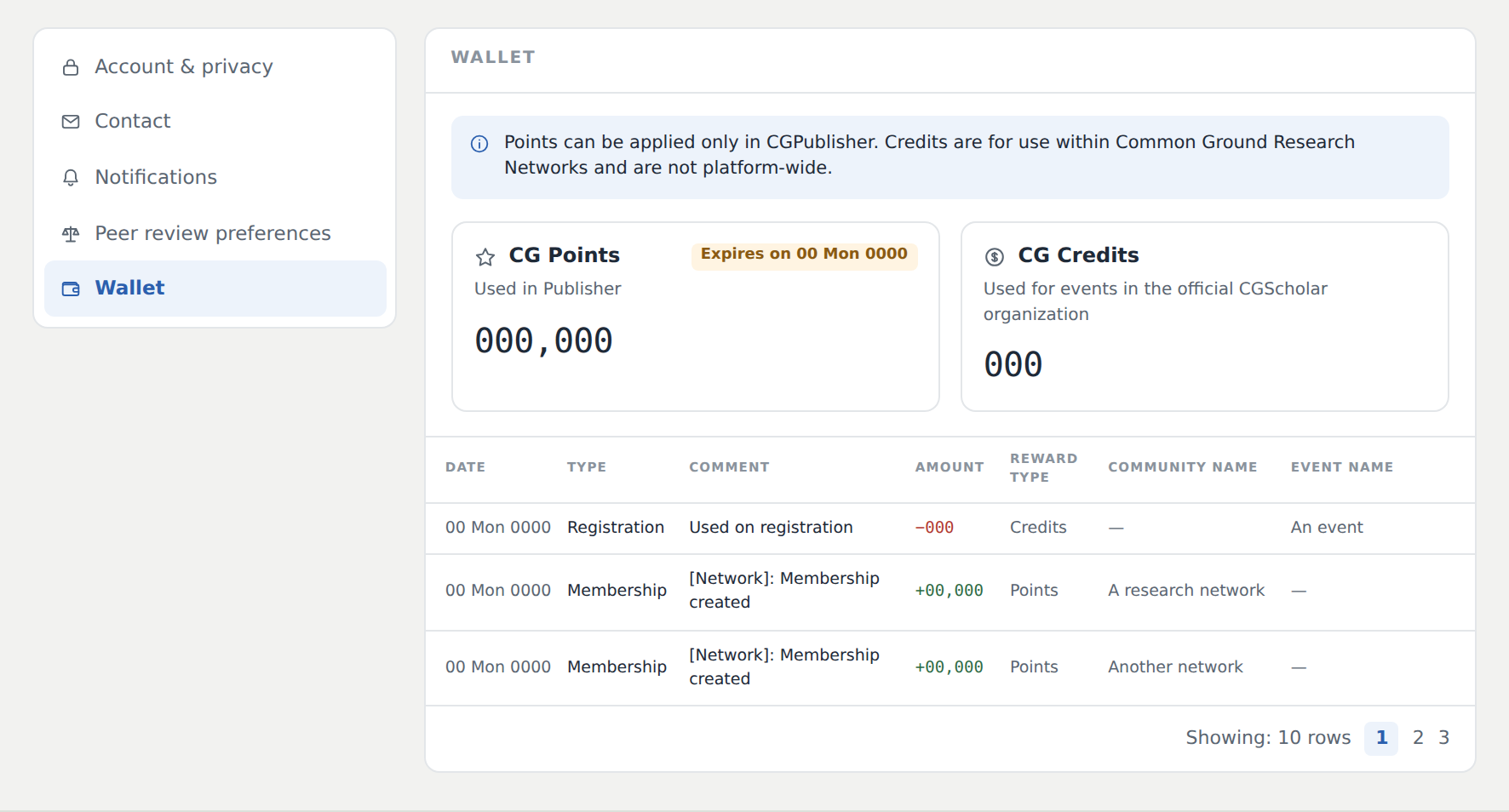
  • Wallet — your points and credits

The three visibility settings

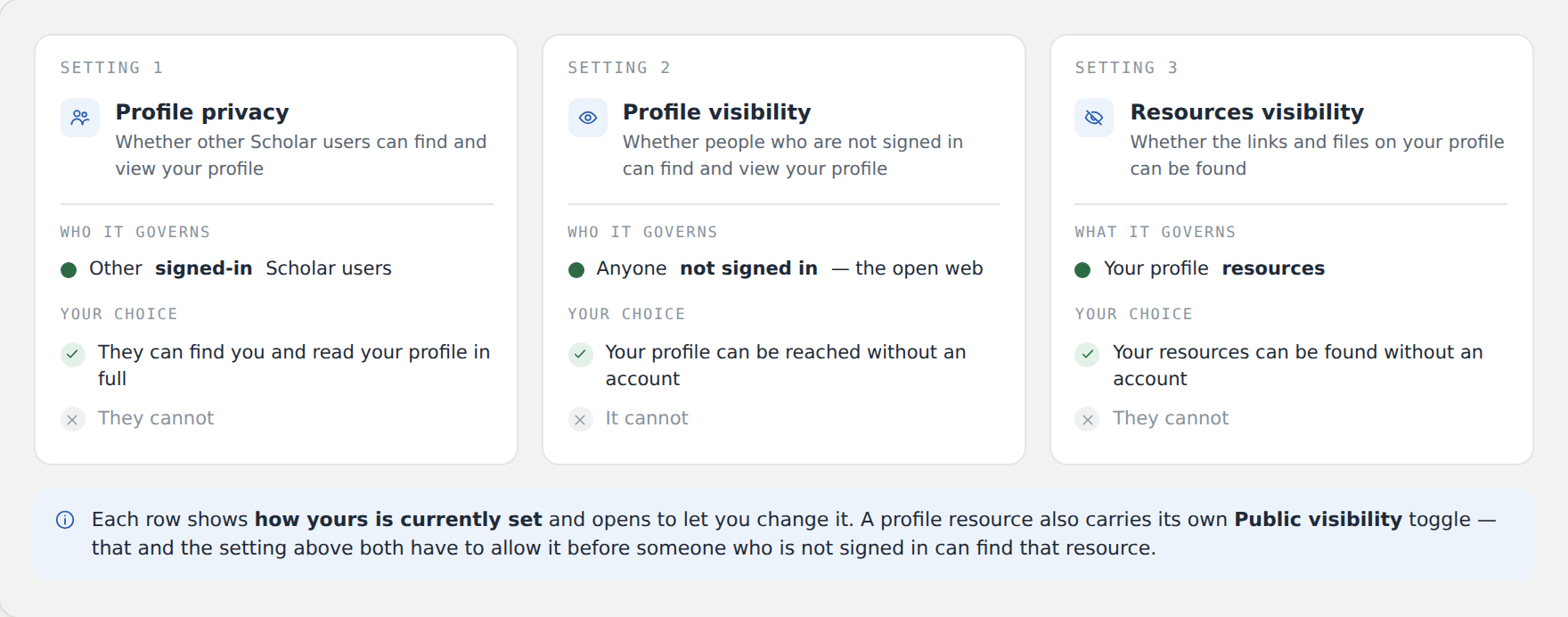
Two of these ask who can see you. The third asks what of yours they can find. Each row shows how yours is currently set, and opens to let you change it.

  • Profile privacy — governs other signed-in Scholar users. Allow it and they can find you and read your profile in full.
  • Profile visibility — governs people who are not signed in. Allow it and your profile can be reached without an account.
  • Resources visibility — governs the links and files on your profile, not the profile itself.

A resource also carries its own Public visibility toggle. That and the setting above both have to allow it before someone who is not signed in can find that resource.
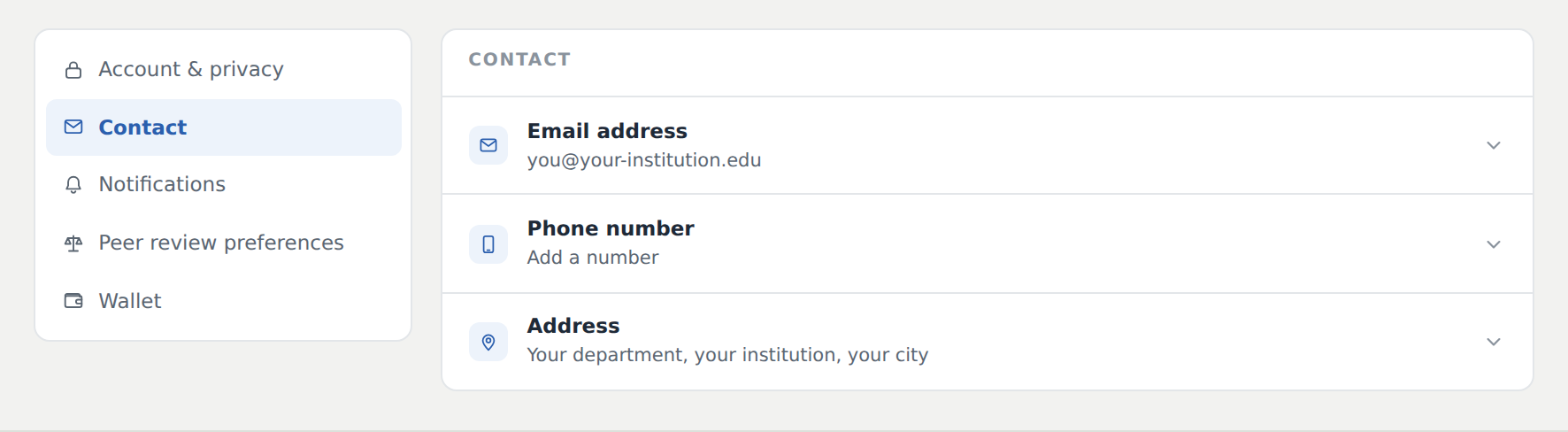
Contact

Three rows — email address, phone number, address. Each opens for editing in place.

Your email address is where every notification, event email and letter goes, and it is how support finds your account. If you move institution, change it here first.

Notifications

Every notice the platform can send is grouped into Peer activity, Communities, and Posts. Each row shows its channels — Email, In-app, or both. Open a row to change them.

Presenters: leave the comment notice on. It is how a question on your presentation page or discussion board reaches you.

Peer review preferences

Two things on one screen: whether you are available to be asked at all (and the number per year), and a toggle for each research network you are willing to read for.

Nothing on this screen is kept until you press Save.

Wallet

Points and credits are not the same thing, and the screen says so at the top.

  • CG Points — granted by memberships, usable only in CGPublisher, and they expire on the date shown.
  • CG Credits — used for events within Common Ground Research Networks. Not platform-wide.

Neither is money, and neither converts into the other.

Frequently Asked Questions

I added resources to my profile and nobody can see them

Two things govern this and both have to allow it. Check Resources visibility under Account & privacy, and the resource’s own Public visibility toggle. If the Add new resource dialog shows a notice saying your resources are not visible, yours is currently set to Hidden — the notice links straight to the setting.

A colleague says they cannot find my profile

If they are signed in, that is Profile privacy. If they are not, that is Profile visibility. Two separate settings, either one can be the cause.

I stopped getting emails about my event or my posts

Check that notice’s row under Notifications — its channels may have been narrowed to In-app. Then check the email address under Contact is one you still read.

I ticked networks under peer review and nothing happened

There is a Save button at the bottom of the screen. Nothing is kept until you press it.

Can I pay for a registration with my points?

No. Points apply only in CGPublisher. Event registrations draw on credits, and the two do not convert.

My points show an expiry date

They do expire. The date is on the CG Points card — use them in Publisher before it.