Calendar view

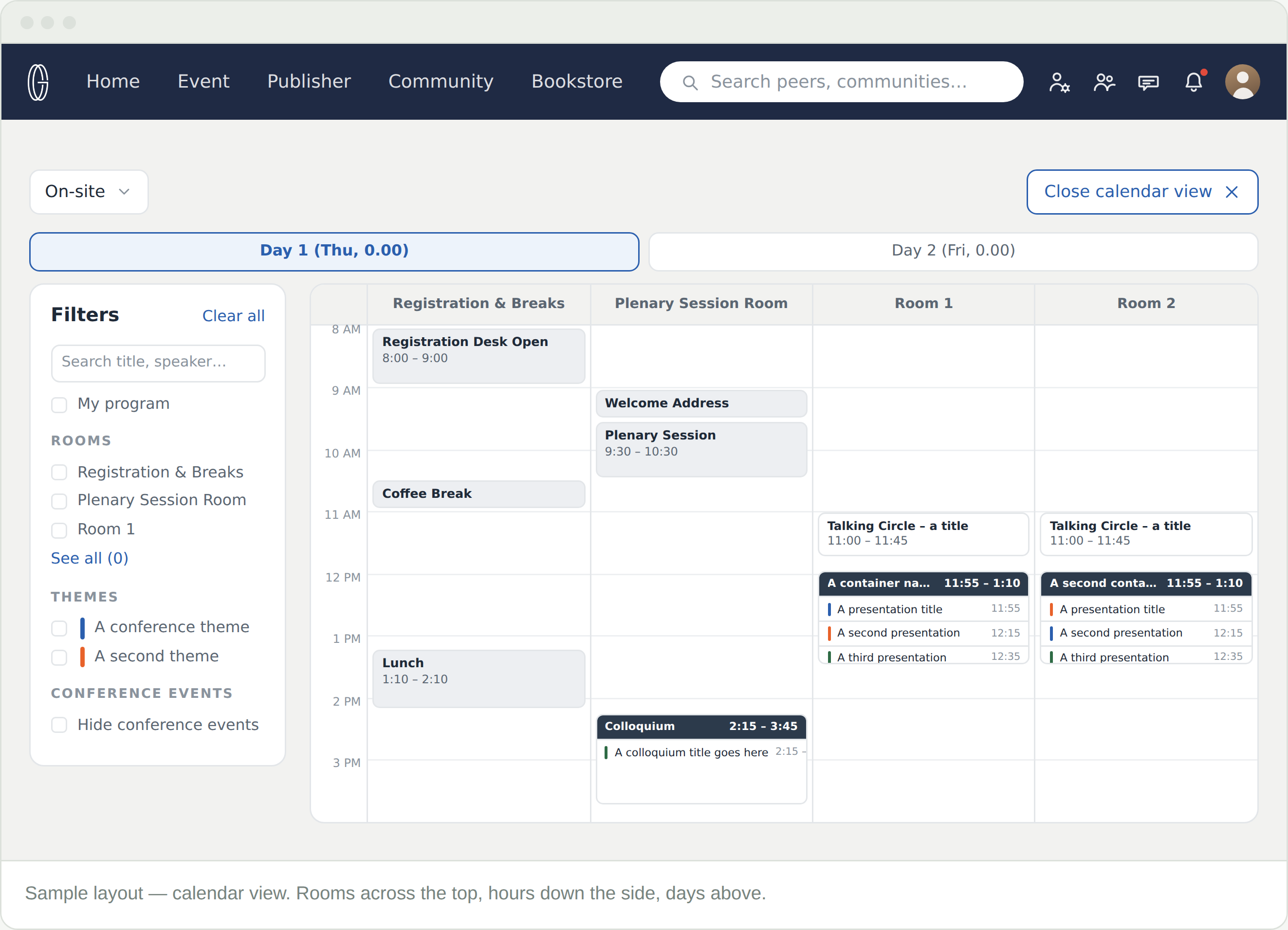
Calendar view lays the same programme out by room and hour. It is worth opening for one thing — seeing what clashes with what — and then closing again. List view is where to plan and where to attend from.

Opening it

Calendar view is at the top right of the Schedule tab. In the grid, the same control reads Close calendar view and takes you back to list view.

The mode and the filters carry over. Whatever you set in list view is still on when you get here — including My program, which dims everything you have not starred.

Reading the grid

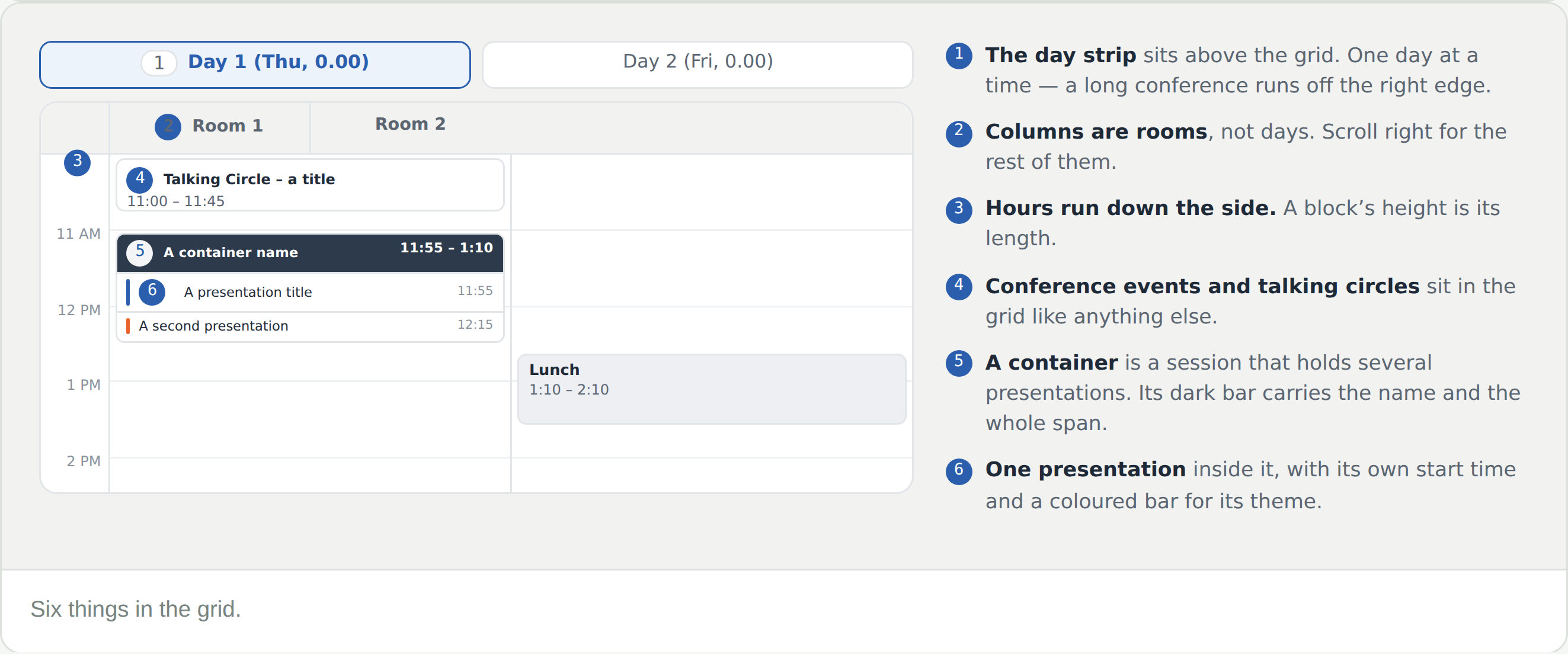
  • Days are a strip above the grid — one day at a time, and a long conference runs off the right edge
  • Columns are rooms, not days. Scroll right for the rest of them
  • Hours run down the side, so a block’s height is how long it lasts
  • Conference events — registration, breaks, the plenary — and talking circles sit in the grid like anything else
  • A container is a session that holds several presentations. Its dark bar carries the name and the whole span
  • Each presentation inside it has its own start time and a coloured bar for its theme, matching the themes in the filters rail

This is the view that shows you a clash. Two things you want in the same hour sit side by side, which is not something list view can tell you.

Click something

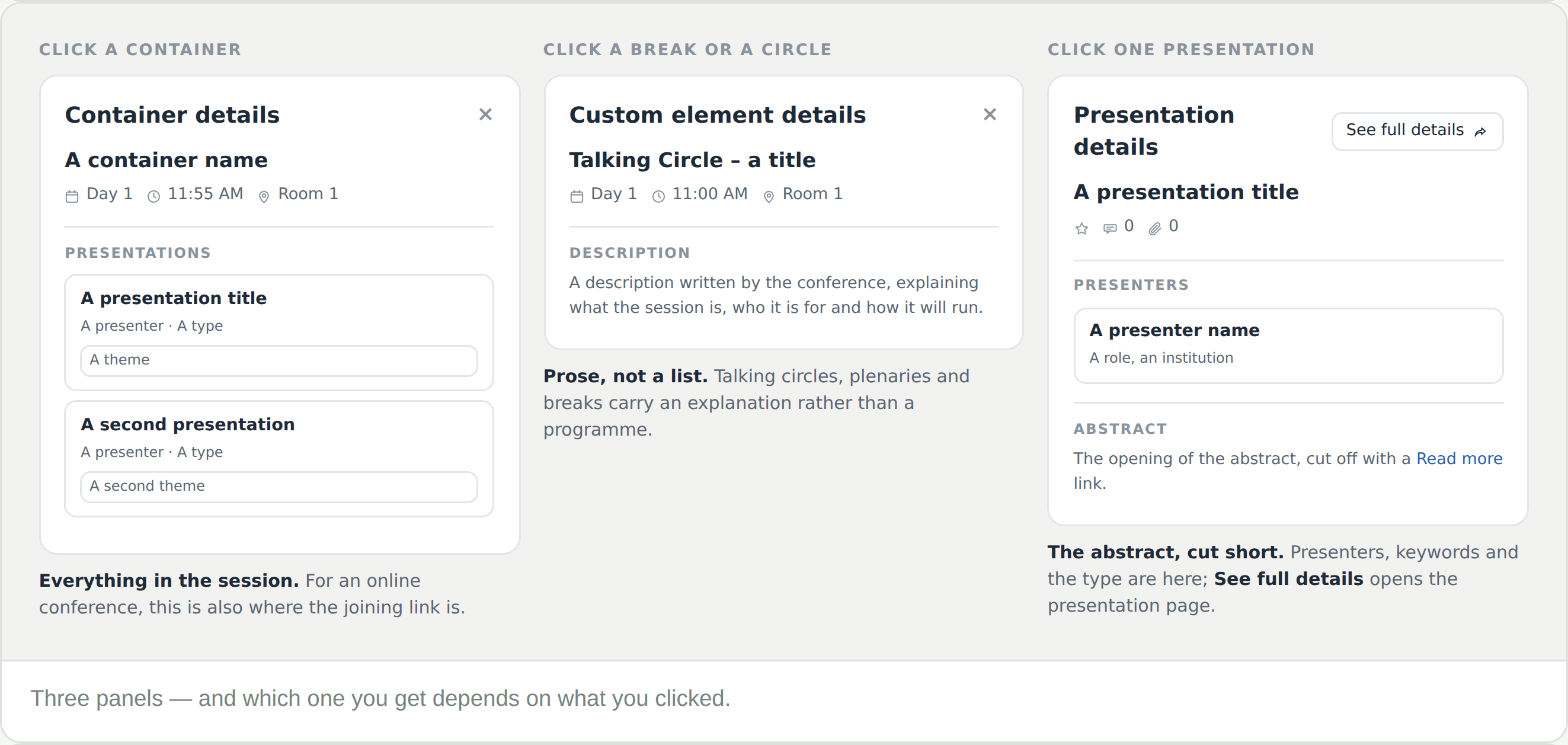
A panel opens on the right, and which one you get depends on what you clicked.

  • A container → Container details. Every presentation in that session, with its presenter, type and theme. On an online conference this is also where the joining link is — you join the session, not one paper inside it
  • A break, a plenary or a talking circle → Custom element details. A description written by the conference, in prose rather than a list
  • One presentation → Presentation details. The presenters, the opening of the abstract with a Read more, the type, theme, language and keywords

The panel is for deciding, not for reading. It stops short of the digital media and the discussion board.

Getting to the whole thing

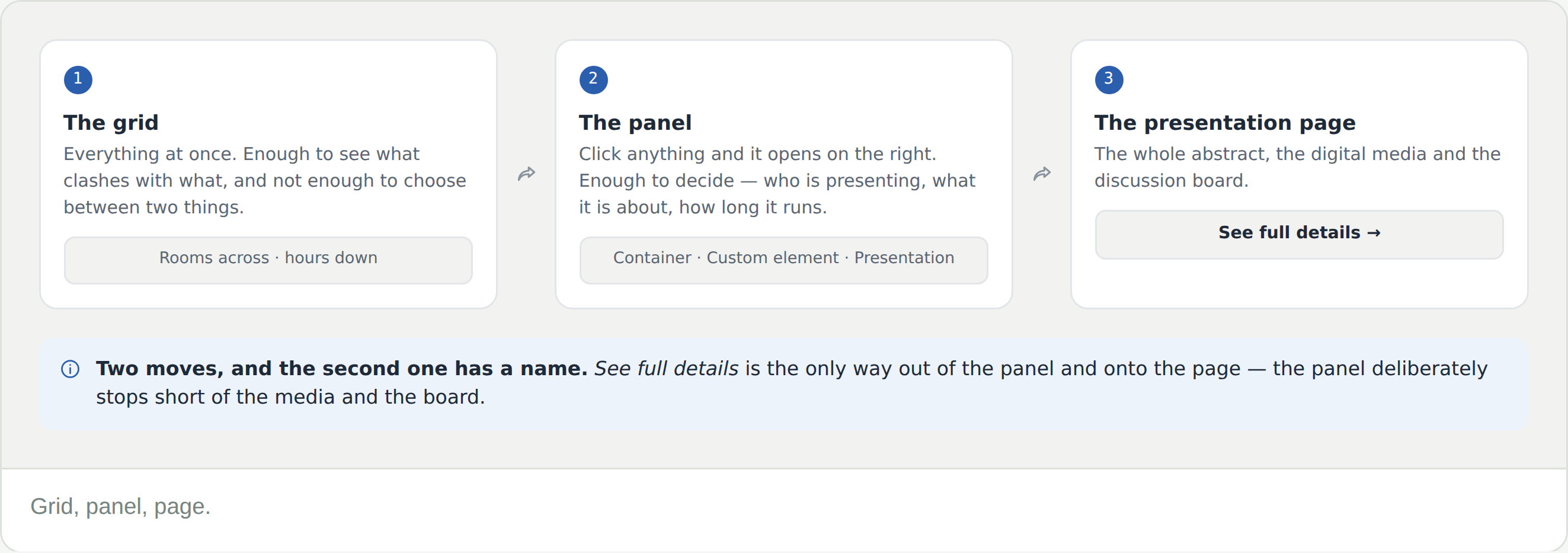
It is two moves from the grid to a presentation page, and the second one has a name: See full details →, at the top of Presentation details. That is where the abstract in full, the digital media and the discussion board are.

Plan in calendar view; read on the presentation page. The grid is for seeing the shape of a day, not for reading abstracts in.

Frequently Asked Questions

Where is the link for an online session?

On the container. Click the session in the grid and it is in Container details — not on the individual presentations inside it.

There is no calendar view

Check the mode. Asynchronous presentations have no time and no room, so there is nothing for a grid to plot — that mode gives a list instead.

Rooms are missing from the top

The grid scrolls sideways. Room columns run off the right edge on a conference with more than a handful of rooms.

It is unusable on my phone

Use list view. Calendar view needs a laptop; that is a real limitation, not something you are doing wrong.

Can I see only my own sessions in the grid?

Tick My program in the filters rail. Calendar view dims everything else and leaves what you have starred lit.

How do I get back to the list?

Close calendar view, where the Calendar view button was. Your filters stay as you left them.