Finding the Schedule

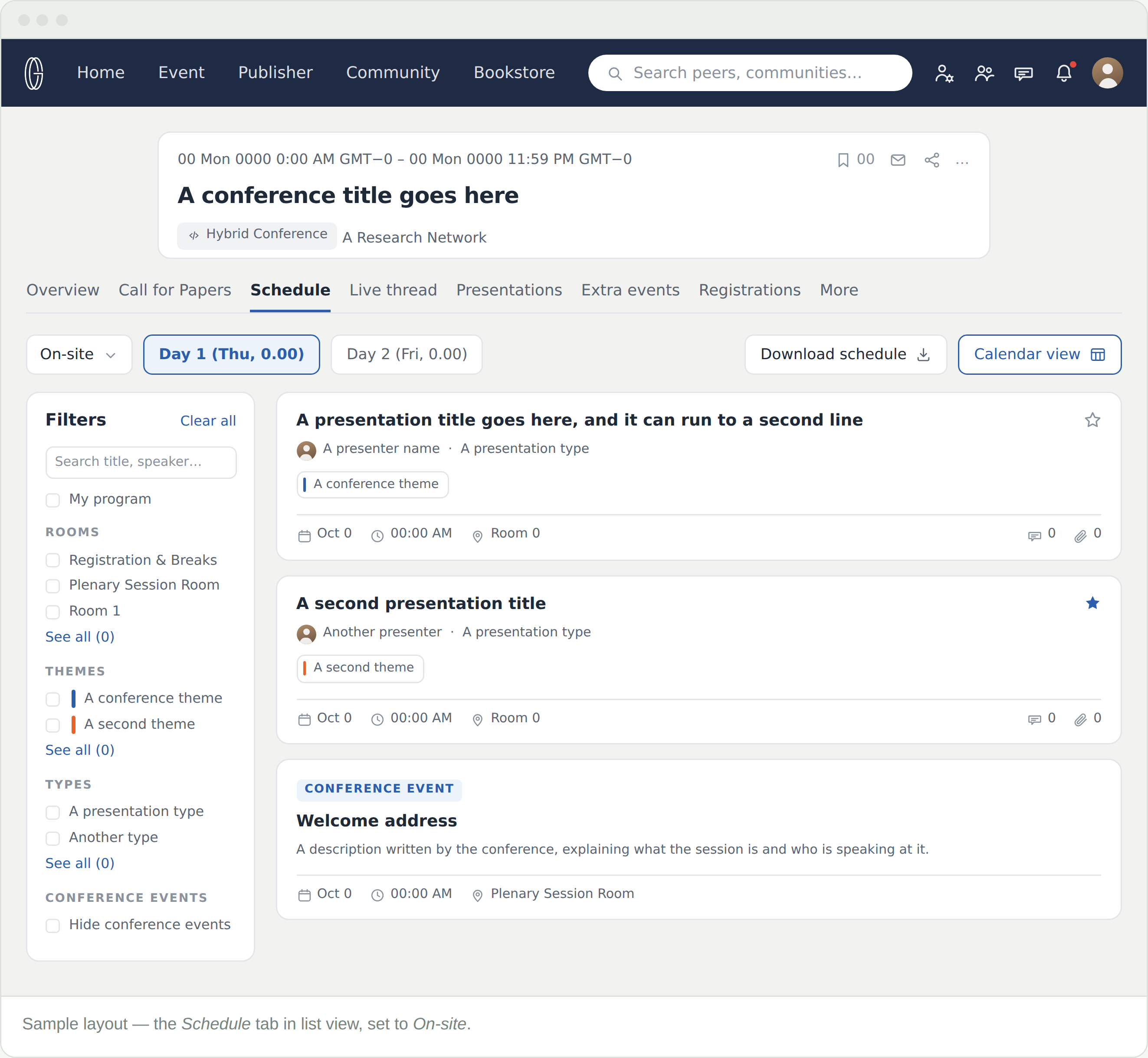
The Schedule tab is the conference’s program. Before you read a word of it, look at the dropdown in the top left — a hybrid conference runs three programmes at once and shows you one at a time.

Opening it

Schedule is the third tab on a conference. It needs a registration: the programme, the digital media and the discussion boards all sit behind one.

The schedule goes live one month before the conference. Before that the tab is there but the programme is not in it yet.

Check the mode first

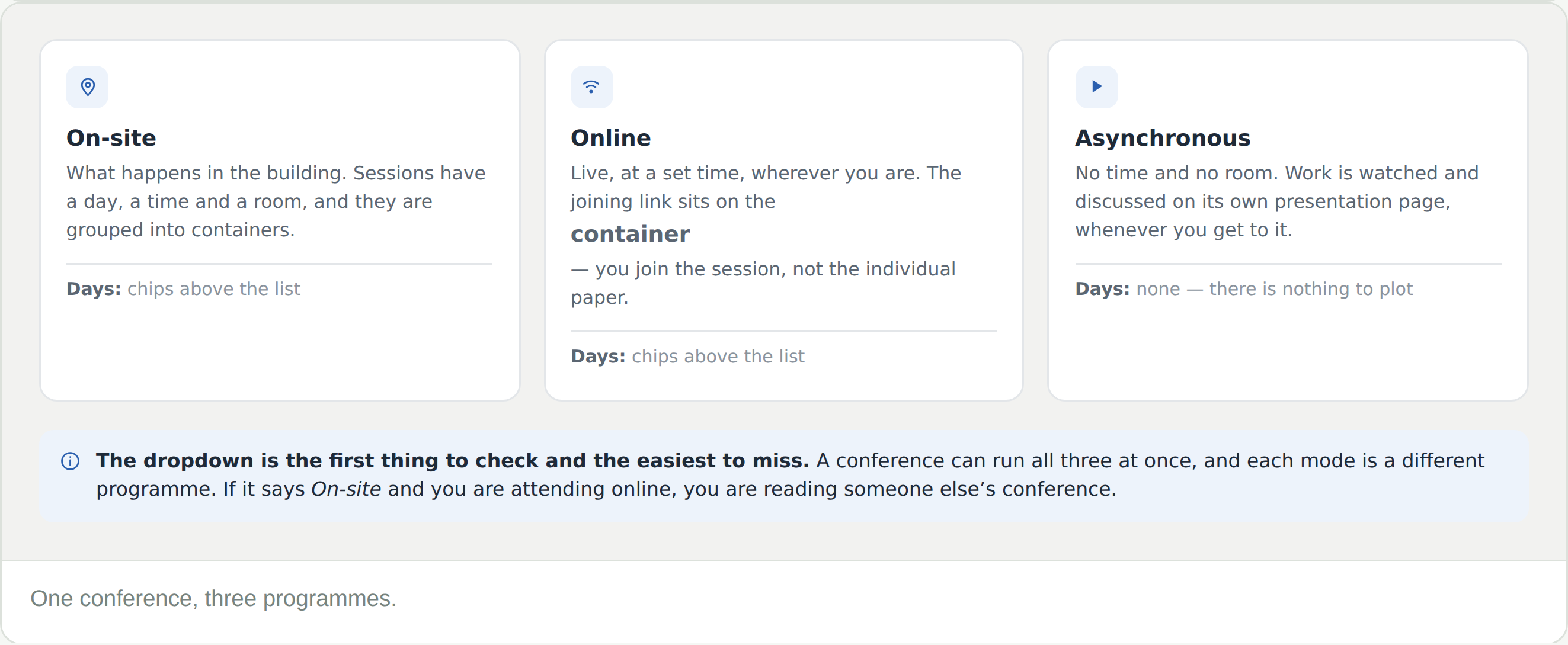
The dropdown at the top left holds up to three programmes. A conference offers the ones it runs.

  • On-site — what happens in the building. Every session has a day, a time and a room
  • Online — live, at a set time, wherever you are. The joining link sits on the container, so you join the session rather than an individual paper
  • Asynchronous — no time and no room. The work is watched and discussed on its own presentation page, whenever you get to it

If the dropdown says On-site and you are attending online, you are reading someone else’s conference.

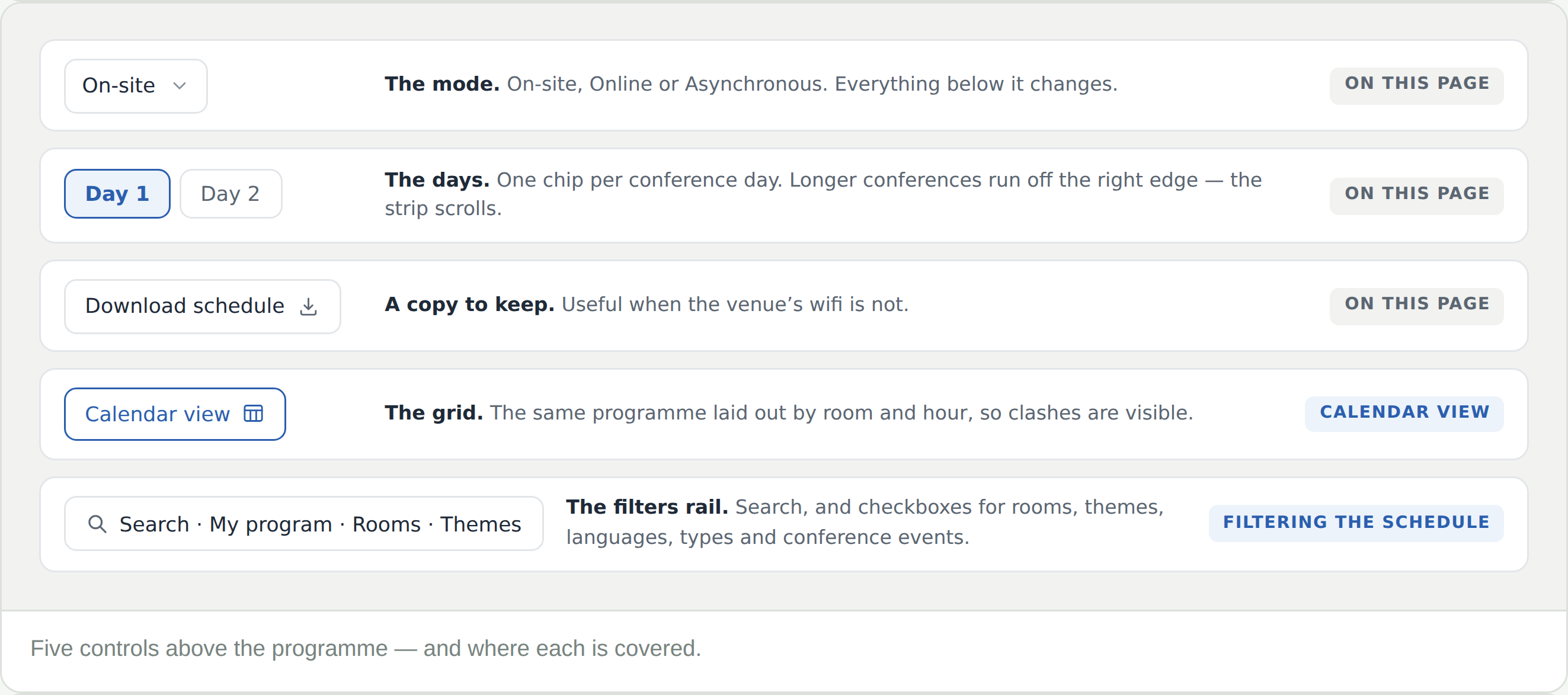
The rest of the controls

  • Day chips — one per conference day. On a long conference the strip scrolls, and later days sit off the right edge. The asynchronous programme has none
  • Download schedule — a PDF of the day you are on. One day per download, so take each day you need before you rely on a venue’s wifi
  • Calendar view — the same programme as a grid
  • The filters rail — search, and checkboxes for rooms, themes, languages, types and conference events

Conference events — registration, the welcome address, breaks, the plenary — sit in the programme as cards of their own, with the venue and the speaker written out.

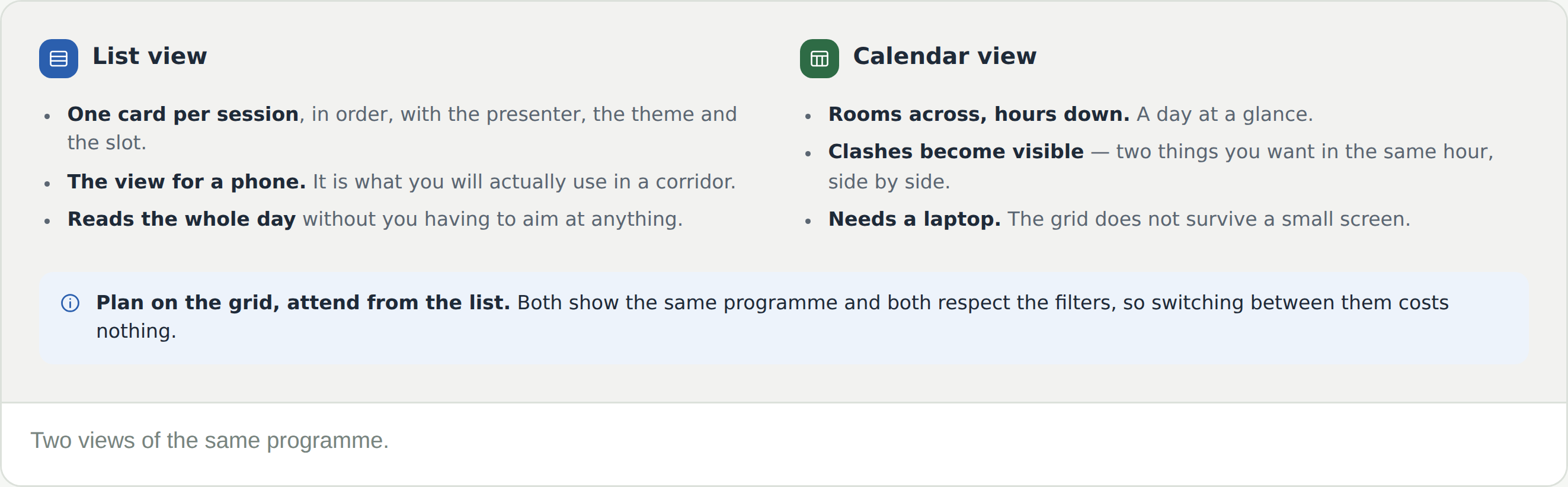
List or calendar

Both views show the same programme and both obey the filters, so switching between them costs nothing.

  • The list — one card per session, in order. This is the view for a phone, and the one you will actually use in a corridor
  • The calendar — rooms across, hours down. Clashes become visible, which is the whole reason to look at it. It needs a laptop

Frequently Asked Questions

The schedule is empty

Two likely reasons. It may simply be early — the schedule goes live one month before the conference. Or you may not be registered: the program, the media and the boards all sit behind a registration.

My sessions are not there

Check the mode dropdown first. Each mode is a separate programme, and a hybrid conference runs all three.

The asynchronous list has no days on it

Correct. Asynchronous work is not time-defined, so there are no day chips and nothing for a grid to plot.

Where is the link for an online session?

On the container — the session, rather than the individual paper inside it.

Can I keep a copy?

Download schedule, at the top of the tab. It gives you a PDF of the day you are looking at — not the whole conference — so switch day and download again for each one you need.

What does the star on a card do?

It puts that presentation in My program. Tick My program in the filters rail and the schedule — list and grid both — narrows to what you have starred.