Posting to a Community

Posting is how you take part rather than just read. A post is a page, not a status update — you write it first, then say where it goes and who may see it.

Starting a post

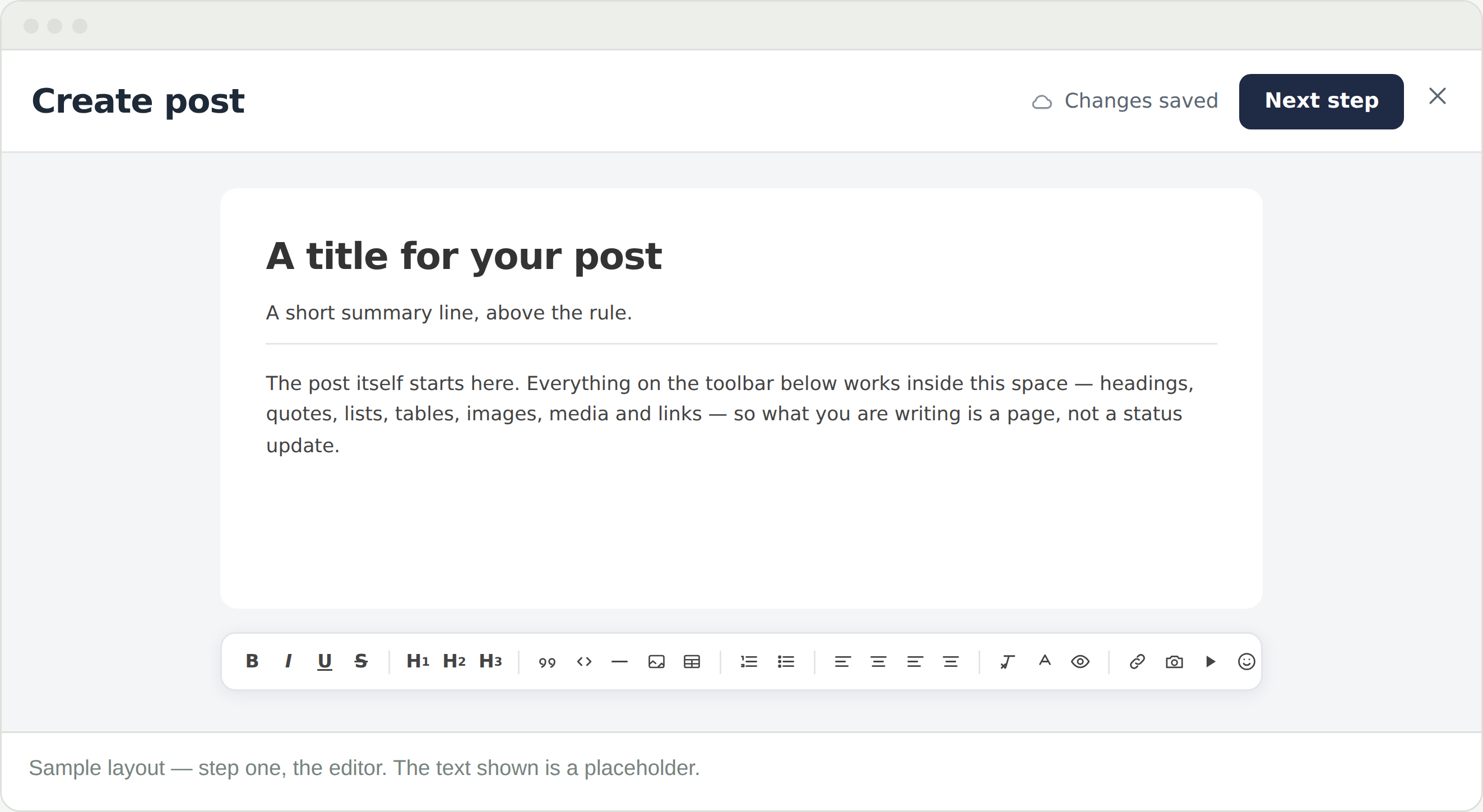
Select Create post from a community, or from your own feed on Home. The editor opens full screen and the platform header goes away — there is nothing to do here but write.

Where you start does not decide where it lands. You choose that at the second step, and you can pick more than one place.

Writing it

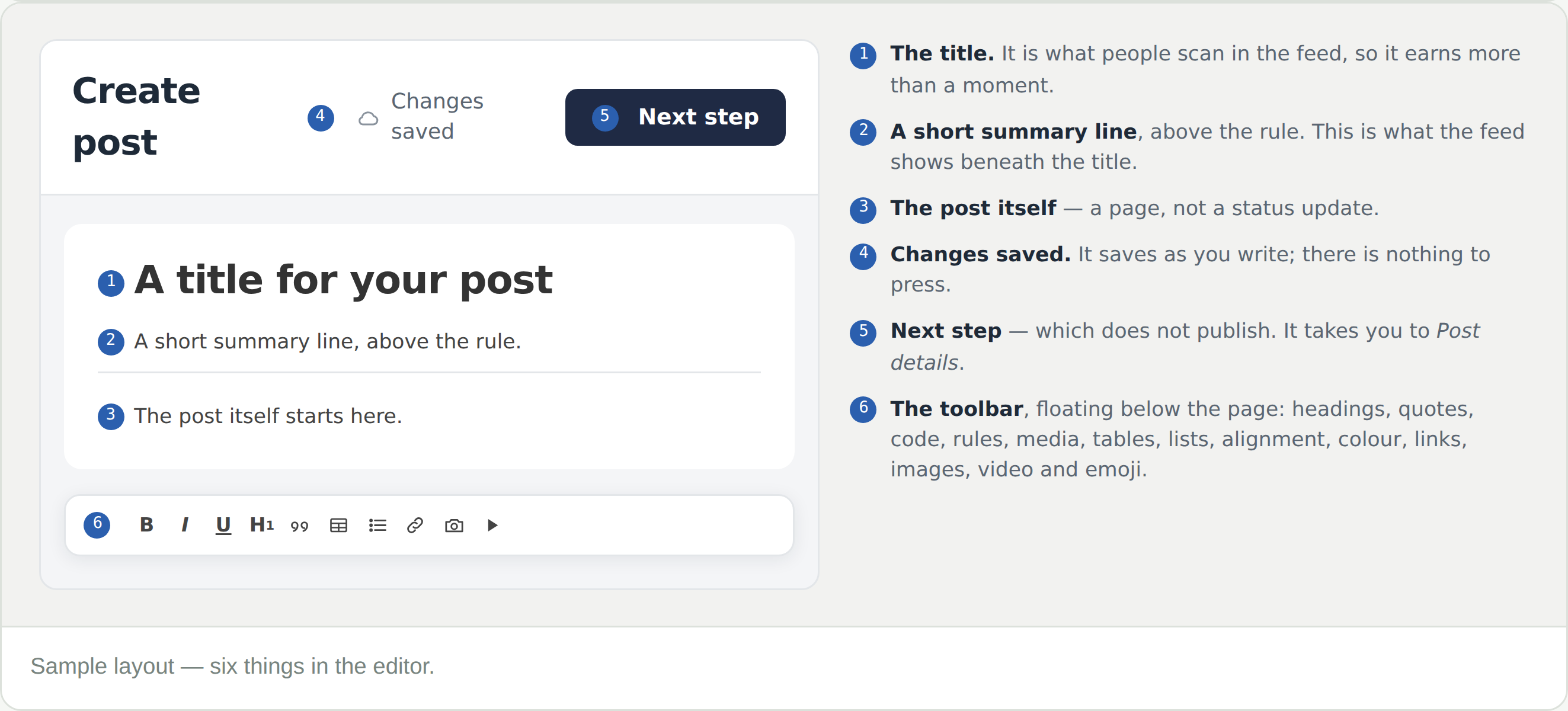
Three fields, in order down the page.

  • The title — what people scan in the feed, so it earns more than a moment
  • A short summary line, above the rule. This is what the feed shows beneath the title, so it is worth writing rather than leaving to chance
  • The post itself, below the rule — as long as it needs to be

It saves as you write — Changes saved in the bar. You can close the editor and come back.

Writing in more than words

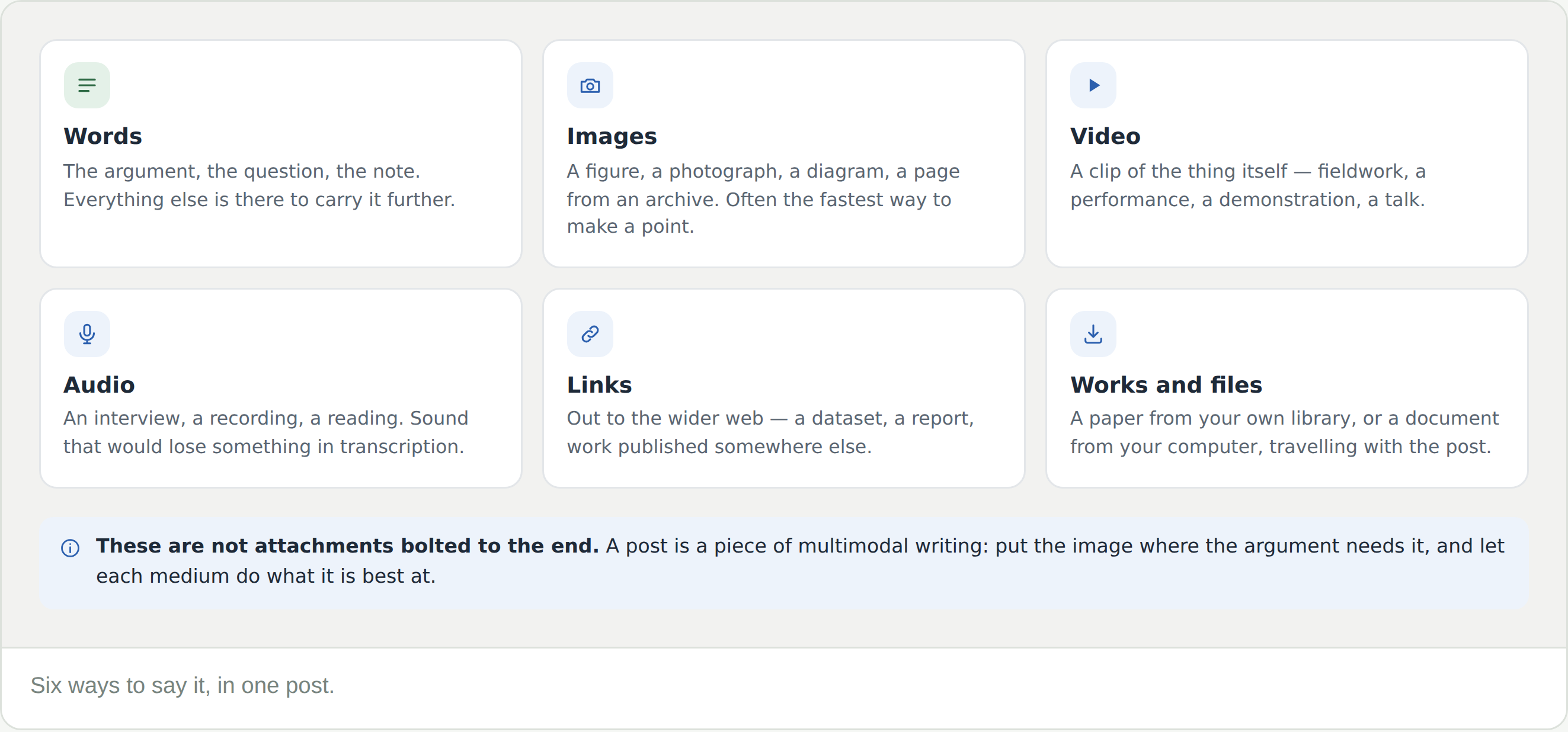
A post is not a paragraph with things stuck to the end of it. The editor is a multimodal writing tool — text, image, sound and moving image are all first-class, and the good posts use whichever carries the meaning best.

  • Words — the argument, the question, the note. Everything else is there to carry it further
  • Images — a figure, a photograph, a diagram, a page from an archive. Often the fastest way to make a point
  • Video — a clip of the thing itself: fieldwork, a performance, a demonstration, a talk
  • Audio — an interview, a recording, a reading. Sound that would lose something in transcription
  • Links — out to the wider web: a dataset, a report, work published somewhere else

Put the image where the argument needs it, not at the end. A post that shows the thing gets opened; a post that only describes it scrolls past.

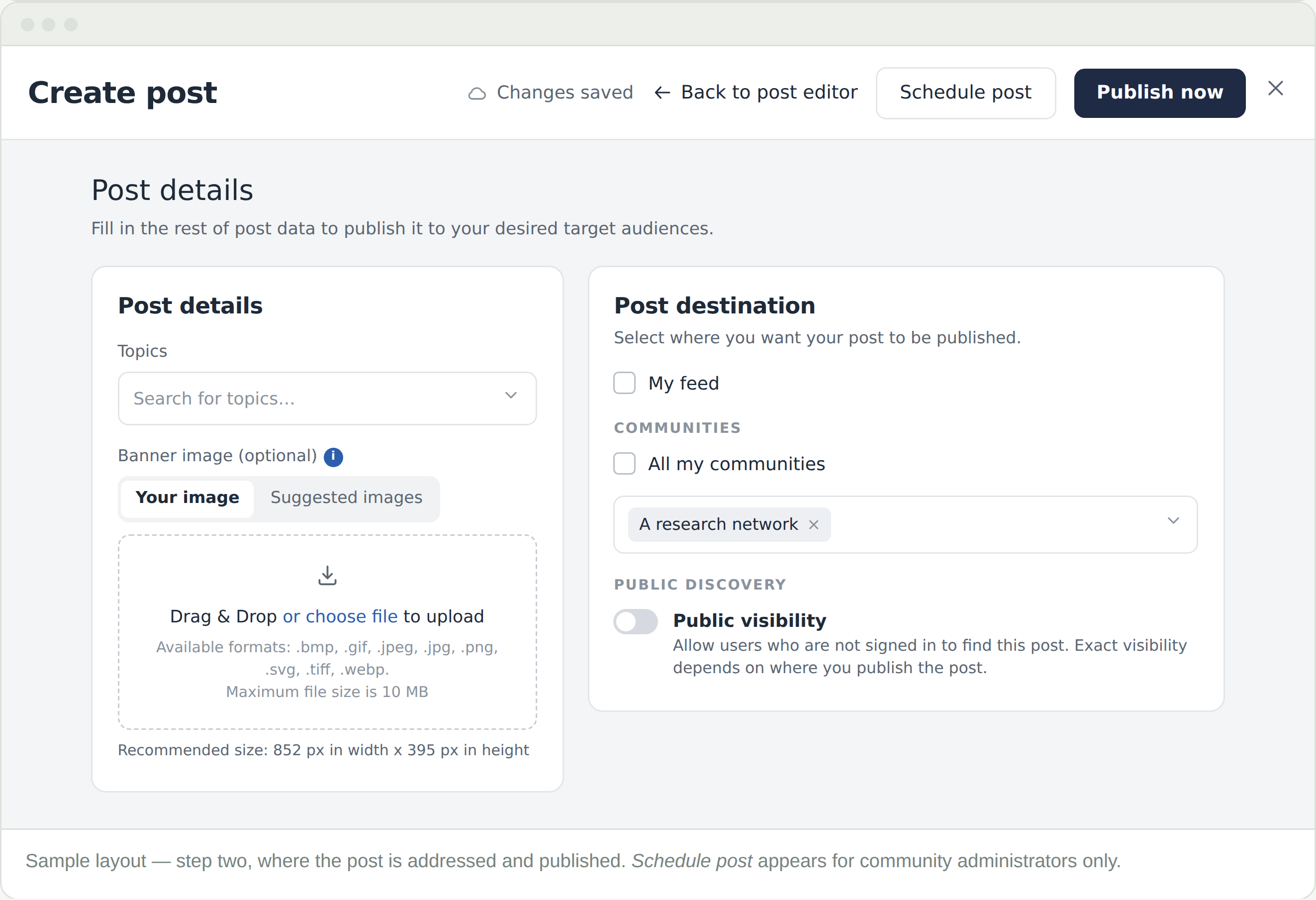
Post details

Next step does not publish. It opens Post details, where the post gets everything that is not the writing.

  • Topics — how people find the post later, rather than in the feed today
  • Banner image, optional. Either upload your image or take one of the suggested images. 852 × 395 px works best; 10 MB is the limit
  • Post destination — where it is published
  • Public visibility — whether people who are not signed in can find it

Back to post editor takes you to the writing without losing anything. The two steps are one draft.

Choosing where it goes

The destinations are tick boxes, not a single choice. One post can go to your own feed and to a community at the same time, or to several communities at once.

  • My feed — your own. It appears at once and reaches the people who follow you
  • Communities — pick them individually, or tick All my communities. Only ones you belong to are listed; following does not put a community here
  • Public visibility — off by default. On, people who are not signed in can find the post; exactly how far it reaches still depends on where you published it

A post sent to a community clears a light review before it appears there. One sent to your own feed does not.

That review happens on the administrators’ side.

After you post

Everything you have written — personal posts and community posts alike — is listed under Manage my posts, where you can edit or remove it.

A community post that has not appeared yet is not lost. It is in review.

Frequently Asked Questions

I pressed Continue and nothing was posted

That is what it does. Continue takes you to the last step, where you choose the destination. The post is sent from there.

I posted and it has not appeared

Community posts clear a light review first. A post to your own feed appears at once, so if you chose a community, give it a little time.

A community I follow is not on the destination list

Only communities you are a member of appear there. Following is enough to read a feed, not to write to it.

Should this go to my feed or to a community?

Ask who it is for. Something that belongs to one field, addressed to the people in it, goes to the community. Something that is yours — a new paper, a position, a note — goes to your own feed.

Can I post the same thing to two communities?

Each post has one destination. Writing to a second community is a second post — worth doing only if it is genuinely relevant to both.

Can I edit a post after it has gone?

Yes, from Manage my posts, under your profile picture. Removing one is in the same place.

What is the difference between a work and a file?

A work comes from your own library on the platform. A file comes from your computer. Use a file for something you have not brought into your library yet.
Frequently Asked Questions

I pressed Next step and nothing was posted

That is what it does. Next step opens Post details. The post is sent from there, with Publish now.

Can I post the same thing to more than one community?

Yes. The destinations are tick boxes — choose as many communities as you like, add your own feed alongside them, or tick All my communities.

I posted and it has not appeared

Posts sent to a community clear a light review first, and that happens on the administrators’ side — there is no queue for you to watch. A post to your own feed appears at once. If a community post stays missing, raise a support request from the community.

How do I attach a file?

You do not — there are no attachments. Images, video, audio, and links go into the writing, using the toolbar under the page. The one exception is the optional banner image, added at Post details.

A community I follow is not on the list

Only communities you are a member of appear there. Following is enough to read a feed, not to write to it.

Will I lose my writing if I close it?

No. It saves as you go — Changes saved shows in the bar — and Back to post editor returns you to it from the second step.

What does Public visibility do?

It lets people who are not signed in find the post. It does not override where you published it: how far it actually reaches still depends on the destinations you ticked.

I do not have a Schedule post button

Scheduling is for community administrators. Everyone else publishes with Publish now.

Can I edit a post after it has gone?

Yes, from Manage my posts, under your profile picture. Removing one is in the same place.